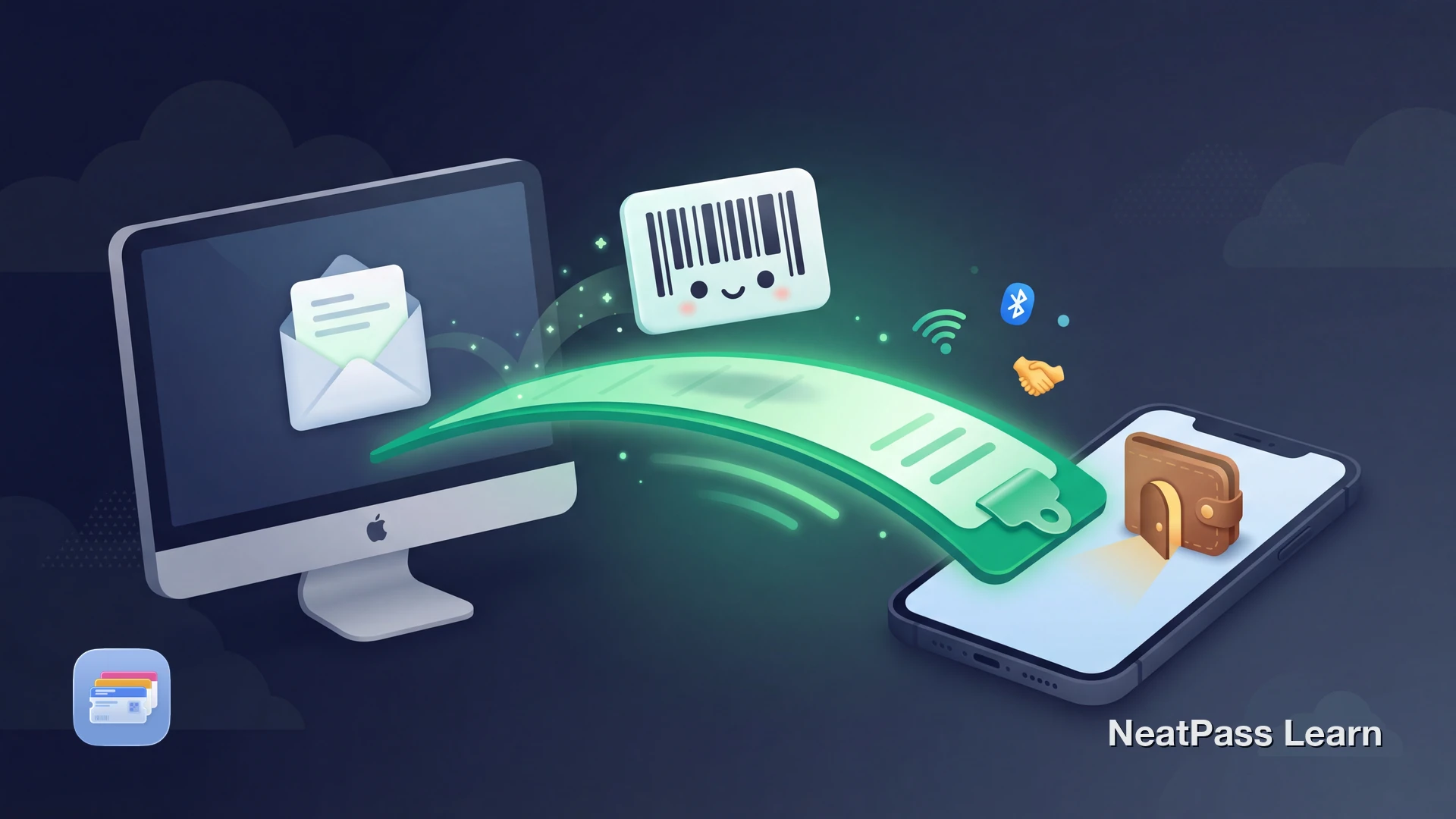
You receive a ticket confirmation on your Mac. The email has a barcode, but no "Add to Apple Wallet" button. Normally, you would need to forward the email to yourself, save the image, or use AirDrop. With Universal Clipboard and NeatPass, there is a faster way.
Screenshot the barcode on your Mac. Open NeatPass on your iPhone. Tap paste. Done. The barcode travels through Apple's Universal Clipboard and becomes a native Wallet pass in seconds.
Why Apple Wallet Does Not Accept Clipboard Pastes
Apple Wallet only accepts .pkpass files from apps or websites that have integrated with Apple's PassKit framework. It cannot import images directly, whether from your Photos library or your clipboard. Apple has never added this capability.
This means when you copy a barcode image on your Mac, there is no way to paste it into Wallet on your iPhone. You need an intermediary app that can read clipboard content, extract the barcode data, and generate a proper .pkpass file.
For more details on what Apple Wallet can and cannot store, see our guide on what Apple Wallet supports.
Screenshot on Mac, Wallet Pass on iPhone
Mit NeatPass kannst du ganz einfach jedes Ticket, jeden Pass oder jede Kundenkarte in Apple Wallet umwandeln.
How Universal Clipboard Works
Universal Clipboard is part of Apple's Continuity features. When you copy something on one Apple device, it automatically appears in the clipboard of your other nearby devices. This works for text, images, files, and screenshots.
Wi-Fi Enabled
Both devices need Wi-Fi turned on (same network not required)
Bluetooth Enabled
Used for device discovery via Bluetooth Low Energy
Same Apple Account
Both devices signed into the same Apple ID
Handoff Enabled
Handoff must be on (enabled by default)
Devices must be within 30 feet (10 meters) of each other. Clipboard content expires after about 2 minutes if not pasted, so act quickly.
Enabling Handoff
The Mac to iPhone Workflow
Here is how to get a barcode from your Mac into Apple Wallet on your iPhone using NeatPass and Universal Clipboard.
Screenshot the Barcode on Mac
Open NeatPass on iPhone
Tap the Paste Button
Review and Add to Wallet
For detailed steps on the paste feature, see our help article on clipboard import.
When This Workflow Shines
The clipboard workflow is especially useful in specific scenarios where other transfer methods are inconvenient.
Email Tickets on Mac
Checking email on your Mac but want passes on your phone? Screenshot and paste.
Work Computers
Using a company Mac without your personal email? Clipboard syncs to your iPhone anyway.
Shared Family Computers
Multiple family members, one Mac. Your clipboard stays tied to your Apple Account.
Quick One-Off Imports
Faster than AirDrop for a single barcode. No need to save files or forward emails.
For tickets received via email, you might also want to read our guide on converting email tickets to Wallet passes.
Benefits of a Native Wallet Pass
Once your barcode is in Apple Wallet, you get all the advantages of a native pass compared to keeping a screenshot.
Instant Access
Double-click side button or use widgets. No searching through Photos.
Works Offline
Pass stored locally. No network needed at the venue.
Lock Screen Ready
Location-based notifications surface your pass when you arrive.
Better Scanning
Auto-brightness and proper rendering for reliable scans.
Learn more about offline mode and lock screen widgets for quick access.
Troubleshooting Universal Clipboard
If the clipboard content does not appear on your iPhone, check these common issues.
- Bluetooth or Wi-Fi disabled - Both must be on for both devices. Does not need to be the same Wi-Fi network, but Wi-Fi must be enabled.
- Different Apple Accounts - Sign into the same Apple Account on both devices.
- Handoff disabled - Check Settings → General → AirPlay & Continuity on iPhone. On Mac, System Settings → General → AirDrop & Handoff.
- Too far apart - Devices need to be within 30 feet (10 meters).
- Clipboard expired - Content lasts about 2 minutes. Screenshot again and paste quickly.
For general import troubleshooting, see all import methods for alternative approaches.
Common Questions
From Mac Clipboard to Apple Wallet
DownloadYour Barcode, Wherever You Copy It
Universal Clipboard turns your Mac and iPhone into a seamless workflow. Screenshot a barcode on your Mac, paste it into NeatPass on your iPhone, and you have a native Wallet pass ready for the venue. No email forwarding, no AirDrop, no saved files.