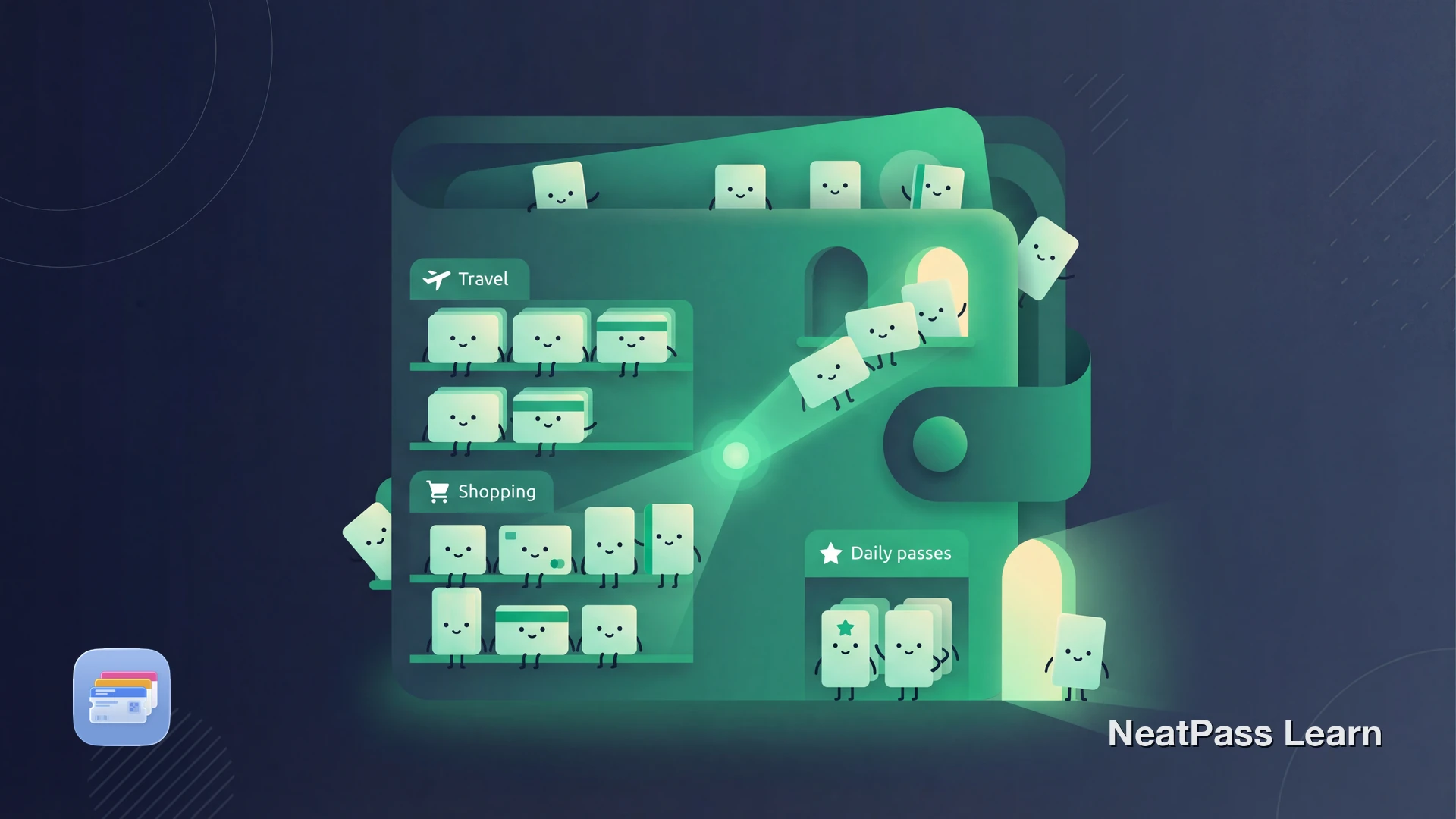
Once you digitize all your loyalty cards, event tickets, boarding passes, and membership cards, your pass library can grow fast. At 20 passes, scrolling works fine. At 50, it gets tedious. At 100+, finding the right pass at the register or gate becomes a real problem.
Apple Wallet stacks everything into a single list with limited organization. NeatPass v1.1 adds the tools you need to stay in control of a large library: custom Collections, iCloud Sync across devices, search and favorites, widgets for instant access, and performance optimizations built for scale.
Why Large Libraries Get Overwhelming
Apple Wallet groups passes by type and surfaces event-based ones on the lock screen. That works for boarding passes that appear at the airport. But for your everyday cards, there is no automatic surfacing. The more passes you add, the longer you scroll.
Flat List
Apple Wallet has no folders or categories. All passes live in one scrollable stack.
No Search
There is no search bar in Apple Wallet. You either scroll or remember the pass position.
No Favorites
No way to pin or star your most-used passes. Your gym card gets buried under new additions.
Limited Sorting
Manual drag-and-drop reordering within each section, but no custom sort options.
These limitations are manageable with a handful of passes. At 100+, they become a daily frustration. The solution is not fewer passes. It is better organization tools.
Organize 100+ passes with Collections, search, and widgets
Mit NeatPass kannst du ganz einfach jedes Ticket, jeden Pass oder jede Kundenkarte in Apple Wallet umwandeln.
Collections: Your Custom Folders
Collections in NeatPass v1.1 let you group passes into categories that match how you actually use them. Think of them as smart folders for your passes.
Create a Collection
Choose an Icon
Add Passes
Set Per-Collection Sorting
For a deeper look at collection strategies, see organizing passes with folders and collections.
Suggested Collections for Power Users
iCloud Sync: Every Device, Always Current
A large library is only useful if it is available everywhere you need it. NeatPass v1.1 uses iCloud Sync to keep your passes, collections, and favorites consistent across iPhone, iPad, and Apple Watch.
iPhone
Your primary device. All passes, collections, and settings sync automatically.
iPad
Browse your full library on a larger screen. Great for organizing collections.
Apple Watch
Quick access to passes from your wrist. QR, Aztec, and PDF417 barcodes supported.
NeatPass uses field-level conflict resolution. If you edit a pass name on your iPhone and change the color on your iPad, both changes merge automatically. If you edit the same field on two devices, the most recent change wins. Your data is never lost.
For setup instructions and troubleshooting, see iCloud sync for wallet passes.
Search, Filter, and Favorites
With 100+ passes, browsing is not practical. NeatPass gives you multiple ways to find any pass instantly.
Instant Search
Type any part of a pass name, issuer, or barcode value. Results appear as you type.
Favorites
Star your most-used passes. They appear at the top of your library and in the Favorites collection.
Collection Filtering
Tap a collection to see only those passes. Instantly narrow 100+ passes to the 10 you need.
Archive Old Passes
Move expired or rarely-used passes to the archive. They are still searchable but out of the way.
Learn more about the library management features or how archiving helps keep your active library clean.
Widgets: Skip the Library Entirely
For passes you use daily, widgets are faster than any search or collection. Pin your most-used passes to your lock screen or home screen and access them without opening the app at all.
Lock Screen Widgets
Gym card on your lock screen. One tap at check-in, no scrolling through 100 passes.
Home Screen Widgets
Larger widgets on your home screen. Show barcode and pass details at a glance.
Works Offline
Widgets display your barcode even without internet. Subway stations and gym basements are fine.
Apple Watch Complications
Add passes to your watch face. Raise your wrist, tap, done.
Set up your first widget with the lock screen widget guide or the home screen widget guide. For a full overview of widget types, see widget overview.
Focus Mode Widgets
Performance at Scale
NeatPass v1.1 includes specific optimizations for users with large libraries. These are behind-the-scenes improvements you do not need to configure, but they make a real difference.
Faster Scrolling
Lazy rendering loads only visible passes. Scrolling through 200+ passes stays smooth.
Efficient Memory Usage
Pass images and barcodes load on demand. Your library can grow without slowing down the app.
Incremental Sync
Only changed passes sync over iCloud. Adding one pass does not re-upload your entire library.
All passes work completely offline. Your barcodes are stored locally on your device. No server round-trips, no loading spinners, no connectivity worries at the checkout counter.
Putting It All Together
Here is a practical workflow for managing a growing library:
Create 3-5 Collections
Star Your Top 5 Passes
Set Up 2-3 Widgets
Archive What You Don't Need
Enable iCloud Sync
For more on pinning strategies, see pinning favorite passes to the top.
Frequently Asked Questions
Your entire pass library, always organized
DownloadYour Library, Under Control
A growing pass library is a good thing. It means you are carrying fewer physical cards, accessing more things digitally, and simplifying your wallet. The key is having the right tools to keep it organized as it scales.
With Collections, search, favorites, widgets, and iCloud Sync, NeatPass v1.1 handles libraries of any size. Your 100th pass is just as easy to find as your first.