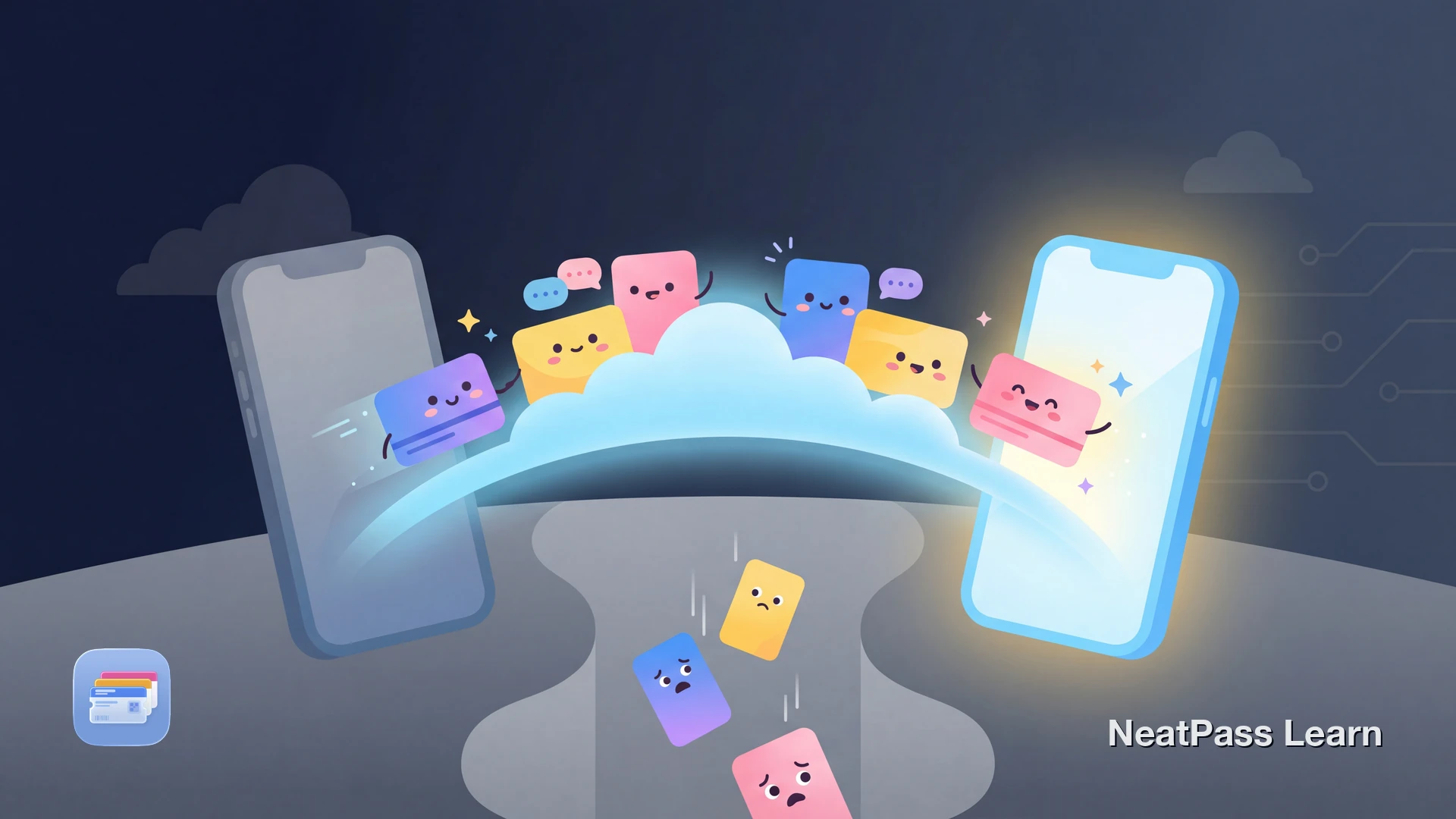
Ein neues iPhone ist aufregend, aber die Datenübertragung kann stressig sein. Was passiert mit all den Bordkarten, Kundenkarten und Veranstaltungstickets, die du in Apple Wallet gesammelt hast?
Gute Nachrichten: Mit aktivierter iCloud-Synchronisation sichert NeatPass automatisch alle deine Pässe beim Gerätewechsel. Keine manuellen Exporte, keine verlorenen Karten, kein Neuanfang.
Warum Pässe beim Upgrade verloren gehen
Drittanbieter-Wallet-Apps speichern deine Karten auf ihren Servern. Wenn du das Handy wechselst, bist du auf deren Backup-Systeme angewiesen. Bei Serverproblemen, geänderten Nutzungsbedingungen oder einer kompletten Einstellung verschwinden deine Pässe.
Serverabhängigkeit
Die meisten Apps brauchen ihre Server, um deine Karten wiederherzustellen. Kein Internet beim Einrichten bedeutet keine Pässe.
Kontoprobleme
Passwort vergessen? E-Mail geändert? Deine Pässe könnten für immer weg sein.
Langsame Wiederherstellung
Hunderte Pässe von einem Server herunterzuladen kann Stunden dauern.
Verlorene Organisation
Benutzerdefinierte Ordner, Favoriten und Einstellungen überleben die Übertragung oft nicht.
Apple Wallet Pässe werden lokal gespeichert und können über iCloud synchronisiert werden, wenn der Wallet-Schalter in den iCloud-Einstellungen aktiviert ist. Aber zusätzliche Organisation, benutzerdefinierte Designs oder Quelldateien leben in der App, die sie erstellt hat. Hier wird die iCloud-Synchronisation von NeatPass unverzichtbar.
Wie die NeatPass iCloud-Synchronisation funktioniert
Wenn du iCloud Sync in NeatPass aktivierst, wird deine gesamte Pass-Bibliothek mit deinem persönlichen iCloud-Konto synchronisiert. Das ist kein separater Cloud-Dienst, dem du vertrauen musst. Es ist Apples Infrastruktur, geschützt durch deine Apple-ID.
Automatisches Backup
Jeder Pass wird sofort nach dem Erstellen mit iCloud synchronisiert. Keine manuellen Exporte nötig.
Echtzeit-Synchronisation
Bearbeite einen Pass auf deinem iPhone und sieh die Änderung sofort auf deinem iPad.
Deine Daten, deine Kontrolle
Pässe liegen in deiner iCloud, nicht auf NeatPass-Servern. NeatPass sieht deine Daten nie.
Nahtlose Migration
Melde dich mit deiner Apple-ID auf deinem neuen Handy an und deine Pässe erscheinen automatisch.
Vor dem Upgrade aktivieren
Bereit, deine Karten zu migrieren?
Mit NeatPass kannst du ganz einfach jedes Ticket, jeden Pass oder jede Kundenkarte in Apple Wallet umwandeln.
Was synchronisiert wird
iCloud Sync sichert alles, nicht nur die Barcodes. Folgendes wird auf dein neues Gerät übertragen:
Pass-Daten
Alle Pass-Informationen einschließlich Eventnamen, Daten, Orte und benutzerdefinierte Bearbeitungen.
Bilder & Originale
Logos, Banner, Barcode-Bilder und die originalen Quell-PDFs oder Screenshots.
Deine Einstellungen
Benutzername, Datumsformat, Spracheinstellung und Auto-Archivierungs-Einstellungen.
Sammlungen
Alle benutzerdefinierten Sammlungen, ihre Reihenfolge und welche Pässe zu welcher gehören.
Erfahre mehr über die Verwaltung deiner Pass-Daten in der Datenverwaltungs-Anleitung.
Multi-Geräte-Bearbeitung
Was passiert, wenn du denselben Pass auf zwei Geräten bearbeitest, bevor sie synchronisiert werden? NeatPass löst das automatisch mit intelligenter Konfliktbehebung:
- Aktueller gewinnt: Wenn Bearbeitungen mehr als 5 Sekunden auseinander liegen, wird die neuere Version verwendet
- Feld-Zusammenführung: Gleichzeitige Bearbeitungen verschiedener Felder werden intelligent kombiniert
- Sammlungen zusammengeführt: Sammlungszuweisungen beider Geräte werden kombiniert
Kein manuelles Eingreifen nötig. Du siehst keine verwirrenden Konfliktdialoge und verlierst keine Arbeit.
Offline-Zuverlässigkeit
Was, wenn du dein neues iPhone ohne Internet einrichtest? Deine Pässe funktionieren trotzdem. iCloud synchronisiert im Hintergrund, sobald die Verbindung wiederhergestellt ist.
Offline-Änderungen in Warteschlange
Alle Bearbeitungen, die du offline machst, werden lokal gespeichert und synchronisiert, wenn du wieder online bist.
Kein Datenverlust
Die Synchronisationsanzeige zeigt ausstehende Änderungen. Nichts geht verloren.
Pässe funktionieren sofort
Deine Pässe sind sofort nutzbar. Die Synchronisation läuft im Hintergrund.
Siehe wie der Offline-Modus funktioniert für mehr Details zur Nutzung von Pässen ohne Internetverbindung.
Die Upgrade-Checkliste
Bevor du dein neues iPhone einrichtest:
- Öffne NeatPass auf deinem alten Handy und gehe zu Einstellungen
- Überprüfe, ob iCloud Sync aktiviert ist (grüne Statusanzeige)
- Warte, bis alle ausstehenden Änderungen synchronisiert sind (orangefarbene Anzeige sollte grün werden)
- Richte dein neues iPhone mit derselben Apple-ID ein
- Lade NeatPass aus dem App Store herunter und deine Pässe erscheinen
Das war's. Keine Exportdateien, keine Kontoanmeldungen, keine manuellen Übertragungen. Deine Pässe sind sofort einsatzbereit.
Widget-Einrichtung
Häufig gestellte Fragen
Bereit, deine Karten zu migrieren?
LadenDeine Pässe, sicher und bereit
Ein iPhone-Upgrade sollte aufregend sein, nicht stressig. Mit NeatPass und iCloud Sync wird deine gesamte Pass-Bibliothek automatisch übertragen. Keine Konten zum Merken, keine Exporte zum Verwalten, keine vergessenen Karten.
Deine Pässe liegen in deiner iCloud, geschützt durch Apples Sicherheit. Wenn du dein neues iPhone bekommst, werden sie auf dich warten. Sieh dir die Datenschutz-FAQ an, um mehr darüber zu erfahren, wie NeatPass deine Daten schützt.